Showing posts with label Microsoft. Show all posts

Monday, June 27, 2011

Windows 8 for software developers: the Longhorn dream reborn?

images?q=tbn:ANd9GcQGGVP3wdbIPh2wZ9ZeOxD2-fy9HvDSF_yGtXRKzly8JtTI2r5S&t=1

A brave new world
Windows 8 will ship with a pair of runtimes; a new .NET runtime (currently version stamped 4.5), and a native code C++ runtime (technically, COM, or a derivative thereof), named WinRT. There will be a new native user interface library, DirectUI, that builds on top of the native Direct2D and DirectWrite APIs that were introduced with Windows 7. A new version of Silverlight, apparently codenamed Jupiter, will run on top of DirectUI. WinRT and DirectUI will both be directly accessible from .NET through built-in wrappers.

WinRT provides a clean and modern API for many of the things that Win32 does presently. It will be, in many ways, a new, modern Win32. The API is designed to be easy to use from "modern" C++ (in contrast to the 25 year old, heavily C-biased design of Win32); it will also map cleanly onto .NET concepts. In Windows 8, it's unlikely that WinRT will cover everything Win32 can do—Win32 is just so expansive that modernizing it is an enormous undertaking—but I'm told that this is the ultimate, long-term objective. And WinRT is becoming more and more extensive with each new build that leaks from Redmond.
WinRT isn't just providing a slightly nicer version of the existing Win32 API, either. Microsoft is taking the opportunity to improve the API's functionality, too. The clipboard API, for example, has been made easier to use and more flexible. There will also be pervasive support for asynchronous operations, providing a clean and consistent way to do long-running tasks in the background.

DirectUI is built around a core subset of current WPF/Silverlight technology. It includes support for XAML, the XML language for laying out user interfaces, and offers the rich support for layouts that Win32 has never had. This core will give C++ programs their modern user interface toolkit and, at its heart, it will be the same toolkit that .NET developers use too. (DirectUI is a name Microsoft has used before, internally, for a graphics library used by Windows Live Messenger. The new DirectUI appears to be unrelated.)

Jupiter is essentially Silverlight 6; a fully-featured, flexible toolkit for building applications. The exact relationship between DirectUI and Jupiter isn't entirely clear at the moment. It's possible that they're one and the same—and that DirectUI will grow in functionality until it's able to do everything that Silverlight can do. It's also possible that DirectUI will retain only core functionality, with a more complete framework built on top of its features. Another option is that Jupiter refers specifically to immersive, full-screen, touch-first applications.


Read more: Ars technica
QR: windows-8-for-software-developers-the-longhorn-dream-reborn.ars
הצפנת קבצים בודדים בתצורת EFS – Encrypted File System–חלק א'

שלום לכולם,
כאן דן ויזנפלד מצוות התמיכה של Microsoft.
כמעט כל אחד מאתנו עושה שימוש במידע אישי, שמסיבה כזו או אחרת, הוא אינו מעוניין לאפשר למשתמשים אחרים גישה אליו.
פתרונות האבטחה שמוצעים היום בשוק (חומות אש ותוכנות אבטחה שונות) יכולים לסייע לכם במצבים בהם קיימת כוונה של פורץ כזה או אחר לגשת למידע האישי שלכם מרחוק (וגם כן, לא בכל המצבים).
עם זאת, אף אחד מהפתרונות הללו לא יכול להגן עליכם במצב בו לאותו פורץ יש גישה פיזית ישירה למחשב שלכם.
Microsoft הציגה במערכות ההפעלה האחרונות (בכל הגרסאות העסקיות של מערכות ההפעלה החל מ-Windows 2000) יכולת הצפנה מתקדמת ביותר, הידועה בשם EFS – Encrypted File System.
במדריך הבא (המחולק לשני חלקים), אבקש להסביר לכם יותר על שיטת ההצפנה הזו – בטרם נלמד כיצד להפעילה וכיצד להשתמש בה.
למה חשוב להכיר את המנגנון לעומק?
1. בכדי למנוע מצבים טרגיים נפוצים בהם מצפינים קבצים מסוימים בצורה לא נכונה, ולאחר מכן לא ניתן לפתוח יותר את אותם הקבצים.
2. בכדי למנוע מצבים טרגיים לא פחות בהם ההצפנה בוצעה בצורה לא תקינה, ומידע שחשבתם שהוא מוצפן ומאובטח – בעצם גלוי לעיני כל.
טוב, אז לאחר שהבנו את חשיבות ההיכרות עם מנגנון ההצפנה, נלמד טיפה יותר על איך הוא עובד. אבל לפני שאגע ואסביר כיצד עובד המנגנון, חשוב להכיר כמה מונחים בסיסיים בתורת הקריפטוגרפיה:
הצפנה סימטרית –
שיטת הצפנה בה המפתח בו נעשה שימוש על מנת להצפין את המידע, הוא היחיד שגם יכול לשמש למטרת פענוח המידע שהוצפן.
כלומר, אם הצפנתי מידע באמצעות מפתח מסוים, עלי להעביר את אותו המפתח לנמען שלי יחד עם המידע שהוצפן, על מנת שהוא יוכל לפענח אותו.
הצפנה א-סימטרית –
שיטת הצפנה בה המפתח בו נעשה שימוש על מנת להצפין את המידע הוא אינו המפתח בו נעשה שימוש על מנת לפענח את המידע.
Read more: MS Support blog

Thursday, June 23, 2011

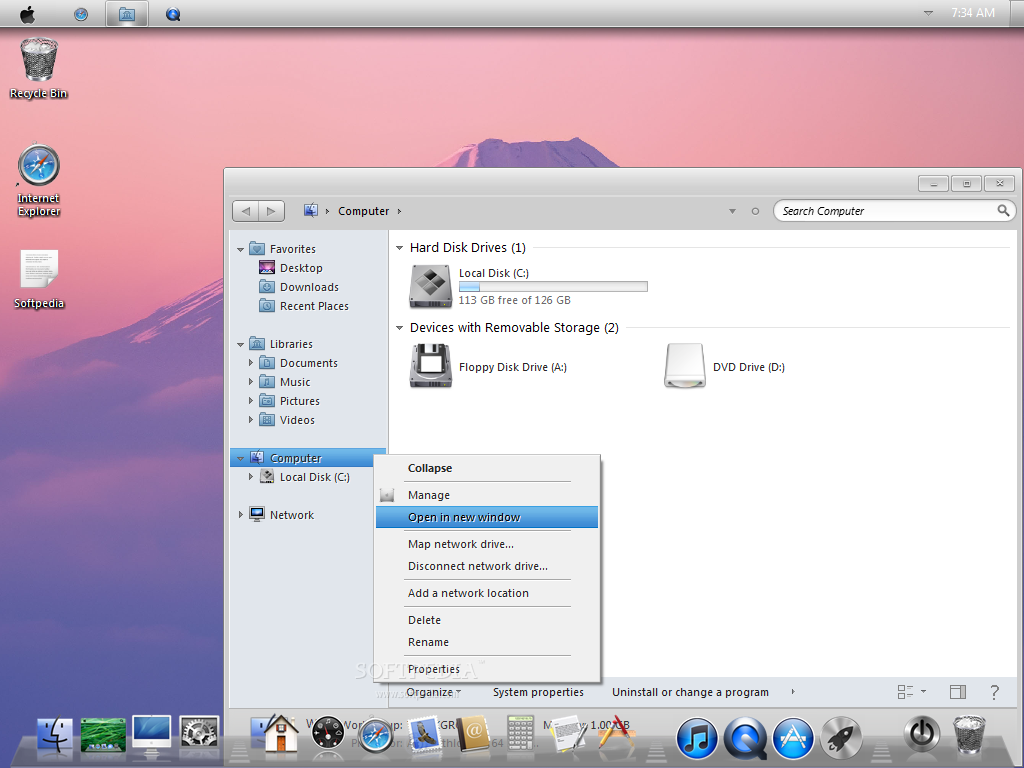
Lion Skin Pack 6.0 Transform Windows 7 To Mac OS X Lion

Lion-Skin-Pack_6.png

Transform Windows 7 To Mac OS X Lion
Support:
- Windows 7 SP1
- X86(32Bit) and X64(64Bit)
- All Language Versions

Programs:

Resource Hacker
http://www.askvg.com...brief-tutorial/

Moveex 1.0 by Alexander Frink
http://wwwthep.physi.../~frink/nt.html

Universal Theme Patcher 1.5.0.22 by deepxw

Win7BootUpdater v0 Beta 1 by jeff

RocketDock 1.3.5 by punk software

myBoard 1.1 by Yann.Alet

Lion Theme by bodik87 Refresh by Me

Read more: WinMatrix

Wednesday, June 22, 2011

Remote Desktop Connection and Remote Assistance (Both Methods Explained)

Introduction
Remote Desktop helps a person to remotely access another computer. You can access the other computer like you are directly working on it. It can help us in solving our friends' problems from a remote location, problem debugging by a technical expert, etc.

How to Perform
For performing Remote Desktop Connection, follow these steps (for Windows 7):

  • Press window key+break.
  • Go to Advanced system settings.
  • Go to Remote tab.
  • Check the option saying “Allow Connection from computer running any version of remote desktop.
  • Click on Apply & then on ok.
  • Goto Start->All programs->Accessories.
  • Select Remote Desktop Connection.
  • Enter the IP address of person you want to connect to.
  • Click on Connect.
  • Enter the desired username & password.
  • Click on ok.
  • Remote Desktop Connection is made.
Note: The computer which you want to connect to through Remote Desktop must have a Login Password (this is mandatory). 
Another way is: Window remote assistance feature (For windows 7).
For doing this, follow these steps:
  • Press Win key+Break.
  • Click on Advanced system settings.
  • Choose Remote Tab.
  • Check the box saying “Allow Remote Assistance Connection to this Computer”.
  • Click on Apply & then ok.
  • Goto start.
  • In the search bar, type troubleshooting.
  • Open it.
  • On the left side of the troubleshooting window, click on “Get help from a friend”.
  • Click on “invite someone to help you”.
  • Click on Save this invitation as a file.
  • Send this file to the person whom you want to connect remotely.
  • Password is shown in the file you just saved. You need to give that password to your friend to provide access to your computer.
Read more: Codeproject

Sunday, June 19, 2011

Windows 8 Milestone 3 build 7989 leaks

1308293473-or-37671.jpg?w=496

A Milestone 3 version of Windows 8 leaked publicly on Saturday.
The build is currently being distributed on FTPs and file sharing sites after an anonymous leakster posted the bits to the win7vista site. The build is a sample of Microsoft’s work from April with Windows 8 and does not reflect the current state of winmain builds. The build is currently available on private FTP sites and is expected to be made available on the usual torrent and file sharing sites in the next few hours.
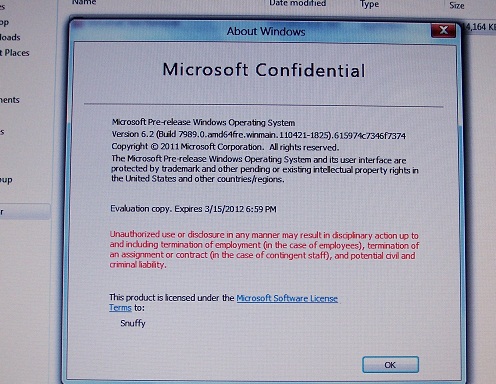
6.2.7989.0.amd64fre.winmain.110421-1825 includes a new wallpaper and unlockable UI bits with the usual red pill trick. It’s not yet clear whether the build includes Microsoft’s new Start Screen interface. Microsoft has also updated the bootscreen to include a betta fish, similar to the one used in Windows 7 beta builds.

Read more: WinMatrix

Wednesday, June 15, 2011

Hyper-V - התקנה ראשונית

כמה דברי הקדמה... 
את כל הפוסטים אני אכתוב עם הסברים בעברית זאת מכוון שיש המון חומר וידע באנגלית, כמובן שהמאמרים הטכניים יפרטו נושאים שקיימים כבר באנגלית ובמקרים מסויימים ייתכן שאין מקביל באנגלית למאמר הטכני שאכתוב בעברית זאת בעקבות צבירת ידע מניסיון עם המוצרים. 
אני אתמקד בכל פוסט בנושא אחד ואשתדל לכסות את כולו(כמובן שכל פוסט יכול לפתוח דלת לעוד עשרות פוסטים אחרים), ניתן לשלוח שאלות או בקשות לפוסטים בתגובות\פנייה אישית\אימייל - תרגישו חופשי. 
הכי חשוב מבחינתי - הפוסטים לא באים להמליץ על מוצר מסוים או על ארכיטקטורה מסוימת, אלא מטרתם להביא אל הכתוב פרוצדורות טכניות (ולא לעסוק ביכולותיו של מוצר על רעהו). 
הפוסטים יתחילו בפעולות בסיסיות ולאט לאט ארחיב על נושאים שהם לא פשוטים לביצוע (ולעיתים אף לא ניתן לבצעם ב-GUI הבסיסי ונידרש להשתמש רק בPowerShell).
אז איך מתחילים? 
נדרש להתקין שרת עם גרסת Windows Server 2008 R2, אני ממליצה להתקין את חבילת התיקונים שMicrosoft שחררו SP1. 
לינק למידע ולהורדת חבילת התיקונים.
טיפ קטן שחייב להיות מובן מאליו לאיש סיסטם: במידה ואתם עובדים על סביבת Production אני ממליצה לבצע תוכנית שדרוג מסודרת ולוודא שהמערכות של הארגון שלכם עובדות בצורה תקינה עם גרסת התיקונים, אף פעם לא מומלץ לבצע התקנה ראשונה ישירות בסביבה שעובדים עליה, קחו את הבדיקה הזו Offline ותבצעו בדיקות מסודרות, זה יכול לחסוך לכם הרבה כאב ראש.
התקנת Hyper-V Role: 
ניתן לבצע זאת בשתי דרכים. 
הדרך העדיפה בעיני היא להשתמש בPowerShell, בפוסטים הבאים אציג לכם את PS בצורה יותר מעמיקה, בשתי מילים: מדובר על כלי מאוד חזק שכל אחד מאתנו חייב לדעת להשתמש בו, באמצעות מספר פקודות ניתן לבצע עבודה שדורשת המון קליקים ועבודה ידנית. 
התקנת PS - אתם מקבלים את PS כחלק מהתקנת מ"ה 7 או Server 2008, אם אתם רוצים להשתמש בPS בגרסת מ"ה קודמת אז נדרש להוריד ולהתקין את הכלי. 
בפוסט שיפורסם בהמשך אני אסביר בדיוק את ההבדלים שקיימים ובמה כדאי לכם להשתמש.

Read more: Esther Fakiri

Uncertainty and the Nanny Stack

The drama around Windows 8 is getting a bit tiring. Now there's an Open Plea by Silverlight and WPF developers for Microsoft to make commitments as to the product future:
Three concrete steps or verbal commitments would assure us Silverlight and WPF developers that there is an integral, irreplaceable, and front-facing role to play in Windows 8 and into the future.
I grew up in a small town, about 5 hours from the nearest capital. For the first decade of my life, my parents owned a pet store. They worked hard and it grew to the largest pet store outside of the capital city, though we certainly weren't rich.

It was an industrial town, where the majority of people in the town got their income through the steelworks. One day talk started that the steel mill was going to be closed. As you can imagine, when most of the town expects to have no job tomorrow, they stop spending pretty quickly. Overnight, a huge number of businesses, including my parents, suffered real cash flow problems.

Many months later, the steel mill was sold, and it turned out the town didn't need to be so worried. But it was too long for most small business, who were forced to shut down and almost declare bankruptcy, including my parents. I remember that as one of the most stressful times of their lives.
I learnt a couple of lessons watching this:
  • Speculation is bad for the economy. The steel mill never closed, but rumours that it might created so much uncertainty that many businesses were forced to close overnight.
  • Putting all your eggs in one basket (in this case, opening a business in a town wholly dependent on one large business) is great when the going is good, but one day the rug will be pulled out from under you.
The rumours and speculation started the downfall, but my parents don't blame them - they recognise that they needed a backup plan.
Putting these lessons into context, here's what I think about the Windows 8 announcements:
  • Microsoft's radio silence is creating some speculation that could put real people's jobs at risk.
  • On the other hand, the people who's jobs are at risk are because they let themselves become wholly dependent on one stack, without a backup plan.
  • Silverlight "chicken littles" are making the problem worse for themselves. By creating such a hullabaloo over the future of Silverlight, they're putting their own dumb selves out of business (you think your customers aren't looking at your Silverlight.net posts and deciding to go with Flash?) despite no announcements from Microsoft.
In politics I subscribe to the belief that the morals and values of the community should inform the government, not the other way around. When government is making decisions about what is good/not good for its citizens, it's described as a "nanny state".
In the Microsoft community, we seem to be in love with the "Nanny Stack". We expect Microsoft to decide whether the future is HTML or Silverlight. We expect Microsoft to have firm plans for the future, since most of us don't. And we blame Microsoft when they don't get their message 100% right.

Read more: Paul Stovell

More on Microsoft 'Jupiter' and what it means for Windows 8

After a first tip this week on Microsoft’s Jupiter — a new “application model” for Windows 8 — I started nosing around to learn more about this mysterious new Microsoft codename.

Here’s a brain dump of what I learned after talking to a couple of sources of mine who spoke on the condition of anonymity, but whom I believe are in the know about the project.

Jupiter is going to be a new user interface (UI) library for Windows, built alongside Windows 8. It will be a thin XAML/UI layer on top of Windows application programming interfaces and frameworks for subsystems like graphics, text and input. The idea is Jupiter will bring support for smoother and more fluid animation, rich typography, and new media capabilities to Windows 8 devices. (Not surprisingly, the more fluid UI capabilities also are on the feature set list for Silverlight 5.)

The high-level goal for Jupiter is to help Microsoft revitalize a world where developers write applications tailored for a specific platform. The days of “killer apps” optimized for Windows driving demand for Windows PCs are waning (if not already long gone). Microsoft’s hope with Jupiter is to provide Microsoft and third-party developers with a new framework, plus the next versions of Microsoft’s various development tools, to build what Microsoft is calling “immersive” applications.

Immersive apps are not meant to be Windows desktop apps. Nor are they necessarily pure Web apps. They are applications that will be built using C#, Visual Basic (and maybe C++). These apps will be developed using the new Windows 8 app model and take advantage of its inherent servicing and packaging technologies and that will be available via the anticipated Windows 8 app store.
Because Jupiter will be built off the same core XAML technology used in Windows Phone and Silverlight, there’s a good chance some of the Silverlight code developers already have written will be able to be reused to develop this new class of apps. Does this mean Windows Phone apps will automatically work on Windows 8 and be available from the Windows 8 app store? I don’t know but I am doubtful.

Rea more: ZDNet

Tuesday, June 14, 2011

Microsoft Windows Thin PC 1.0 is out

Microsoft has released Windows Thin PC (WinTPC), a new Windows 7 version tailored for Virtual Desktop Infrastructure (VDI) access, making it generally available at the beginning of July 2011. It will be made available only for customers who use Microsoft Software Assurance (SA).

Windows Thin PC, which was announced in January this year, is a smaller footprint, locked down version of Windows 7, which enables customers to install this version of Windows on existing PCs. This enables the customers to repurpose these PCs as thin clients, which can be used to access Virtual Desktop Infrastructure (VDI) environments. PCs with WinTPC installed do not require a Virtual Desktop Access (VDA) license, in contradiction to regular clients who want to access a VDI environment.
The Community Technology Preview of WinTPC was released in March 2011.

Console2 - A Better Windows Command Prompt

I blogged about Console2 as a better prompt for CMD.exe in 2005. Here we are 6 years later and I hopped over there to see Console2 was still being developed. They were on build 122 then, and they are, magically and to their extreme credit, still around and on build 147. Epic.
Open Source projects may be done, but they are never dead.

I downloaded Console2 at http://sourceforge.net/projects/console/files/ and put it c:\dev\utils which is in my PATH.

Here's how I set it up for my default awesomeness.

  • Right-click in the main console and click Edit | Settings.
  • Under Console, set your default Startup Directory
  • Under Appearance|More, hide the menu, status bar and toolbar.
  • Under Appearance, set the font to Consolas 15. Not 14, not 16. Black background, Kermit green foreground color.
  • Set Window Transparency to a nice conservative 40 for both Active and Inactive. Not too in your face, but enough glassiness to say "I'm a subtle badass."
  • Under Behavior set "Copy on Select"
  • Under Hotkeys, change the New Tab 1 hotkey to Ctrl-T because that's what it should be. You'll have to click on the hotkey, then in the textbox, then type the hot-key you want AND press Assign for it to stick.
  • Under Hotkeys, change Copy Selection to Ctrl-C and Paste to Ctrl-V then rejoice and wonder why Windows doesn't work like this today. At this point, you may want to device if you want "Copy on Select" to happen automatically under Behavior. That'll save you the Control-C if you like.
  • (more..)

כיצד ניתן ליצור תקליטור אתחול (Boot CD) של המערכת - WinPE

שלום לכולם
כאן דן ויזנפלד מצוות התמיכה של Microsoft.
משתמשים מתקדמים יבקשו לעיתים ליצור תקליטור אתחול (Boot CD) למטרות שונות – החל מתיקון מערכת ההפעלה במחשב, ועד ליצירת Image או הכנה של מחשב לפריסת ה-Image.
בפוסט הבא, אדגים כיצד ניתן ליצור תקליטור אתחול של מערכת WinPE, או בשמה המלא: Windows Preinstallation Environment.
כמה מילים על WinPE – מדובר במערכת הפעלה מינמאלית עם שירותים מוגבלים, המבוססת שורת פקודה על בסיס גרעין מערכת ההפעלה Windows Vista. המערכת משמשת בעיקר להכנת מחשבים לפריסה של Image באמצעות השרת או בדרך אחרת, יצירת Image והעתקו לנקודה ברשת, או לייזום תהליך התקנה של Windows.
על מנת ליצור את WinPE, יש להוריד ראשית את סדרת הכלים WAIK (Windows Automated Installation Kit) המסייעים להתאמה אישית ופריסה של מערכות הפעלה המבוססות על Windows Vista (Windows 7 ו-Windows Server 2008).

תוכלו להוריד בחינם את WAIK ל-Windows 7 בקישור הבא (1.7 GB): WAIK.
משתמשים במערכות ישנות יותר, יכולים להוריד את הקובץ מהקישור הבא (1 GB): WAIK.
ניגש כעת לתהליך יצירת התקליטור:
1. לאחר התקנת סדרת הכלים WAIK, כנסו ל-Start (התחל), ל-All Programs (כל התכניות) ולאחר מכן ל-Microsoft Windows AIK. בתיקייה זו תמצאו את Deployment Tools Command Prompt. הפעילו את הכלי.

--1_thumb_2333E0B9.png


Read more: MS Support blog

Monday, June 13, 2011

How to enable Aero Desktop Experience under Remote Desktop Services (RDS)

Remote Desktop Services (RDS) in Windows 2008 R2 support Aero Desktop Experience.
Prerequisite:
1. Compatible display card device.
2.  Compatible display card driver.
3. Re-design the server I/O and network utilization requirements.
4. Windows 2008 R2 with Remote Desktop Services (RDS).
To enable Aero Desktop Experience you will need to complete the following steps:
1. Installation of "Desktop Experience" feather.
2. Set "Themes" service to start automataclly after each server reboot.
3. Start "Themes" service.
4. Navigate to "Personalize Desktop" and choose the Aero theme.
Note: This step can be done by using GPO. 
5. Use RDP 7.1 (or newer) on the client side.

Read more: yuval14

Microsoft Download Manager

The Microsoft Download Manager enables you to download files simply and easily. It also makes downloading large files such as application and multimedia files quick and reliable.

Read more: MS Download

Wednesday, June 08, 2011

Proof of Concept Jumpstart Kit v2.0

The PoC Jumpstart provides resources to deploy a desktop PoC with Windows 7, Office 2010, Internet Explorer 8, and Application Virtualization with Microsoft Desktop Optimization Pack technology.
  • This self-contained, self-service kit will help you complete a Proof-of -Concept (PoC) at your organization, allowing you to quickly evaluate the new Microsoft desktop technologies, including Windows 7, Office 2010 Pro Plus, Internet Explorer 8, and Application Virtualization with Microsoft Desktop Optimization Pack technology App-V. It will also familiarize you with some of the important deployment tools provided by Microsoft to assist with your broader deployment efforts. This PoC is not meant to be comprehensive training mechanism but rather an introductory set of modules to familiarize you with tools and technologies. 
  • Microsoft Windows Server 2008 Enterprise Edition – A platform that helps IT Professionals increase the flexibility and reliability of their server infrastructure. 
  • Microsoft Assessment and Planning Toolkit (MAP) – A tool to assess your hardware readiness for Windows 7 and Office 2010. 
  • Microsoft Application Compatibility Toolkit (ACT) – A tool to assess your software readiness for Windows 7 and Office 2010. 
  • Microsoft Office Migration and Planning Manager (OMPM) – A tool to assess and upgrade Office versions and files. 
  • Microsoft Office Environment Assessment Tool (OEAT) – A tool to assess Office add-ins. 
  • Microsoft Office Code Compatibility Inspector (OCCI) – A tool guide remediation of Office VBA code. 
  • Microsoft Security Compliance Manager (SCM) – A tool guide management and customization of group policy settings 
  • more....
Read more: Bink.nu

Sunday, June 05, 2011

How do I prevent users from pinning my program to the taskbar?

A customer wanted to prevent users from pinning their application to the taskbar.
I have an application that is launched as a helper by a main application. Users shouldn't be launching it directly, but rather should be launching the main application. But since the helper shows up in the taskbar, users may be tempted to right-click on the taskbar icon and select "Pin to taskbar." Unfortunately, this pins the helper program to the taskbar instead of the main application, and launching the helper program directly doesn't work. Is there a way I can prevent users from pinning the helper program?

It so happens that there are a number of ways of marking your helper program as Don't pin me. Given the description above, the most direct way is probably to set the System.App­User­Model.Prevent­Pinning property on the window created by the helper program.
Take our scratch program and make the following changes:

#include <shellapi.h>
#include <propsys.h>
#include <propkey.h>
HRESULT MarkWindowAsUnpinnable(HWND hwnd)
{
 IPropertyStore *pps;
 HRESULT hr = SHGetPropertyStoreForWindow(hwnd, IID_PPV_ARGS(&pps));
 if (SUCCEEDED(hr)) {
  PROPVARIANT var;
  var.vt = VT_BOOL;
  var.boolVal = VARIANT_TRUE;
  hr = pps->SetValue(PKEY_AppUserModel_PreventPinning, var);
  pps->Release();
 }
 return hr;
}
BOOL
OnCreate(HWND hwnd, LPCREATESTRUCT lpcs)
{
 MarkWindowAsUnpinnable(hwnd);
 return TRUE;
}

I set the PROP­VARIANT manually instead of using Init­Prop­Variant­From­Boolean just to emphasize that the boolVal must be VARIANT_TRUE and not TRUE. In real life, I probably would have used Init­Prop­Variant­From­Boolean.

Best Practice: How to use Group Policy to black/white list wireless networks in Vista & Windows 7

I have seen an number of posts form IT Administrators on the Microsoft Group Policy forums asking how prevent their users from connecting to a wireless network. Maybe it is because they have an open WIFI network on the floor above that users keep connecting to so they can by pass the proxy server URL restrictions or they don’t want their users from accessing the internet from well known WIFI hot spots.

In the tutorial below I am going to show you how to block your laptops from connecting to specific wireless networks with the example SSID of “dlink”. This black list method is useful when you want to prevent users from connecting to networks such as “Free Public WiFi” which is nothing more than a trap set by hacker to steal people’s passwords.

Then I will go through the way will to block all wireless networks except for one called “private_ab” using the White List method. This is very useful if you only want your users to connect to wireless network you know are safe to use.

Lastly I will then quickly show you how to totally disable your wireless adapter from being able to connect to any networks.

The instructions below are specific to Vista and Windows 7 as there were a whole heap of new group policy settings that were introduced back when Vista was released.

How to Black List/White List Wireless Networks using Group Policy

Note: Steps 1 to 5 are common for setting up both black and white lists. Then the process branches and describes how to setup a black list then white list in steps 6 & 7.
Step 1. This is a computer based setting so edit a Group Policy Object (GPO) that is targeted to all the laptops in your network

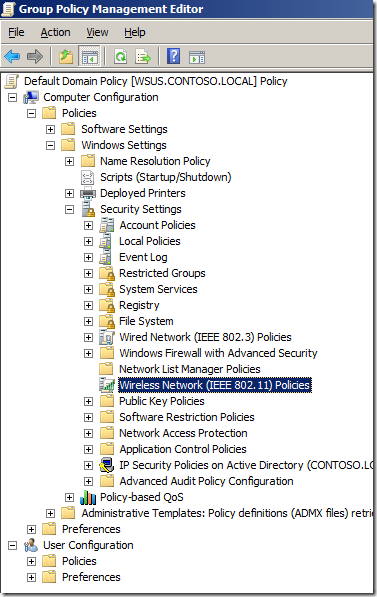
Step 2. Navigate to Computer Configuration > Policies > Windows Settings > Security Settings > Wireless Network (IEEE 802.11) Policies

image_thumb16.png

Read more: Group Policy Center

Baby Steps in Windows Device Driver Development: Part 2, “Hello World” Driver

In this installment, we will compile and deploy our first driver. You should have all the tools installed already.

Windows device drivers are reactive programs—all they really do is respond to events, somewhat similar to GUI programs. The kinds of events drivers recognize include:

Loading the driver into memory and unloading it from memory
Adding a new hardware device for which the driver is responsible
Transitioning to a power-savings mode
Reading and writing from a device
Handling an interrupt arriving from a device

A driver handles these events by registering functions that Windows invokes. In this post, we will use only two of these functions, invoked when a driver is loaded and unloaded.
Type the following into your favorite code editor and save it as HelloWorldDriver.c:

#include <ntddk.h>

void DriverUnload( 
    PDRIVER_OBJECT pDriverObject) 
{ 
    DbgPrint("Driver unloading\n"); 
} 
NTSTATUS DriverEntry( 
    PDRIVER_OBJECT DriverObject, 
    PUNICODE_STRING RegistryPath) 
{ 
    DriverObject->DriverUnload = DriverUnload; 
    DbgPrint("Hello, World\n"); 
    return STATUS_SUCCESS; 
}

Thursday, June 02, 2011

Microsoft ships free malware cleaner that boots from CD or USB

Microsoft-Standalone-System-Sweeper-Tool.png

In a move aimed at cutting down on support call costs, Microsoft has released a malware recovery tool that boots from a CD or USB stick.

The tool, currently in beta, is called Microsoft Standalone System Sweeper, and promises to help start an infected PC and perform an offline scan to help identify and remove rootkits and other advanced malware.

In addition, Microsoft says the System Sweeper utility can be used if you cannot install or start an antivirus solution on your PC, or if the installed solution can’t detect or remove malware on your PC.
The company made it clear that the recovery tool is not a replacement for a full antivirus product.
It is available for both 32-but and 64-bit Windows systems and uses the same antivirus engine as the Microsoft Security Essentials product.
Just last month, the company shipped a free security tool called  Microsoft Safety Scanner to offer on-demand scanning to helps remove viruses, spyware, and other malicious software. The safety scanner works with existing antivirus software.

Read more: ZDNet
Read more: System Sweeper

Tuesday, May 24, 2011

Windows debugging made easy

When it comes to debugging hard-to-diagnose software and operating-system problems, there is no set recipe. Rather debugging is all about "having the right tools and knowing how to use them," advised Microsoft technical fellow Mark Russinovich at the close of the Microsoft TechEd conference, held this week in Atlanta.

Among the highlights of each year's TechEd conference are the technology demonstrations. Smart Microsoft and partner engineers walk attendees through how to use some new technology in a step-by-step process, making it seem easy -- or even fun -- to deploy.

HOW-TO: Solve Windows 7 crashes in minutes
And one of the most popular demonstrations over the past few years has been Russinovich's "Cases of the Unexplained," in which he shows how he and others tracked down hard-to-pinpoint errors in Windows deployments.

Read more: NetworkWorld

AppLocker Technical Documentation for Windows 7 and Windows Server 2008 R2

The AppLocker Technical Documentation for Windows 7 and Windows Server 2008 R2 provides technical guidance about understanding how AppLocker works and how to effectively plan and deploy AppLocker policies.

Read more: MS Download