Showing posts with label Linux. Show all posts

Tuesday, June 28, 2011

How To Remotely Copy Files Over SSH Without Entering Your Password

banner-019.png

SSH is a life-saver when you need to remotely manage a computer, but did you know you can also upload and download files, too? Using SSH keys, you can skip having to enter passwords and use this for scripts!

This process works on Linux and Mac OS, provided that they’re properly configured for SSH access. If you’re using Windows, you can use Cygwin to get Linux-like functionality, and with a little tweaking, SSH will run as well.


Copying Files Over SSH
Secure copy is a really useful command, and it’s really easy to use. The basic format of the command is as follows:

    scp [options] original_file destination_file

The biggest kicker is how to format the remote part. When you address a remote file, you need to do it in the following manner:
    user@server:path/to/file
The server can be a URL or an IP address. This is followed by a colon, then the path to the file or folder in question. Let’s look at an example.

    scp –P 40050 Desktop/url.txt yatri@192.168.1.50:~/Desktop/url.txt

This command features the [-P] flag (note that it’s a capital P). This allows me to specify a port number instead of the default 22. This is necessary for me because of the way I’ve configured my system.


Read more: How-to geek
QR: https://chart.googleapis.com/chart?chs=80x80&cht=qr&choe=UTF-8&chl=http://www.howtogeek.com/66776/how-to-remotely-copy-files-over-ssh-without-entering-your-password/

Monday, June 27, 2011

Linux 3.0 Will Be Faster Than 2.6.39

While we were thinking that the announcement of 3.x branch was nothing more than Linus' mood swing, it seems there is more to it. Linus wrote on the Linux Kernel Mailing List, '3.0 will still be noticeably faster than 2.6.39 due to the other changes made (ie the read-ahead), so yes, the regression itself is fixed.'


Read more: Slashdot
QR: Linux-30-Will-Be-Faster-Than-2639

Sunday, June 26, 2011

25 Linux Server Hardening Tips

When it comes to having a Linux server hosted in a data center or it is not behind any kind of Firewall or NAT device there are a number of security requirements that need to be addressed. Linux servers generally come with no protection configured by default and depending on the hosting company or distro can come preconfigured with many services installed that are not required, including Web Servers, FTP Servers, Mail Servers and SSH Remote Access.

The following is a compilation of various settings and techniques you can employ to harden the security of your vulnerable Linux systems. While I have tried to put them in order of the most important features first I would recommend all of these options be used on your critical production servers.

TIP #1 – Strong Passwords
Always create long passwords that contain upper and lower case letters, numbers and non alpha-numeric characters. Enforce password ageing so users need to change their passwords regularly. Lock user accounts after a certain number of failed login attempts.

TIP #2 – Use Public/Private Keys
Make use of Public/Private SSH keys for login of remote users instead of passwords, this provides the benefit of turning off password authentication in SSH so that your server can’t be Brute-Force cracked. However this does introduce a new problem whereby a malicious person could compromise a user’s computer or steal their laptop and then have access to the server. This can be overcome by using a password on the client certificate which must be entered before connecting, a kind of two factor authentication.

TIP #3 – Disable Root Login
Disable the Root user from being able to login either via the console or remote SSH connections. Instead have users use Sudo to run programs that require root privileges, or use sudo su to change to the Root user once logged in. This provides an audit path to show which user installed a piece of software or ran a program.

Read more: monitis

Friday, June 24, 2011

Slingshot Brings Mac OS X Style LaunchPad To Ubuntu Linux

Ubuntu-VMware-Workstation_2011-06-11_17-27-37.png

In the wake of the new Mac launcher, imitation apps are showing up for other operating systems to replicate the functionality of the Mac OS X Launchpad. One recent example for is JumpPad, which is mean to provide the Launchpad functionality in Windows. But if you would like to get this functionality in Ubuntu, then you can give Slingshot a try. It is a Launchpad style application launcher which can be be used with the Unity Launcher to quickly locate and run applications.
Read more: Addictive tips

Thursday, June 23, 2011

Xfce 4.8 & Xubuntu 11.04: the cure for the GNOME blues?

I think we can all agree that the latest 11.04 release of Ubuntu is their weakest in recent history. From a myriad of installation problems (I have not been able to install it successfully on any of my 3 different Dell/Lenovo laptops) to the unfinished and unpolished Unity interface...the problems just keep piling up.
I had a go at Fedora 15 and GNOME 3.0 as well...I needed a couple of Advil to wash down the pain of that experience. It may become something one day...but right now it's just a confusing mess.
So I crossed the Rubikon and went Xubuntu with Xfce 4.8...a really positive surprise.
Works like a proper desktop environment, light, fast, the panels are greatly improved (and better than GNOME 2.0 at this point already), etc...

Wednesday, June 22, 2011

Monitoring on Unix from scratch

Linux, and in general many Unix-like systems, bundle lots of useful command line tools for monitoring the resources of a machine for performance's sake, with tracked parameters such as occupied memory, CPU utilization, or disk requests.
This list of commands, complete with flags and sample output, should be run while there is some kind of load on the system, in order to find out for example which resources are scarce (usually I/O) and which are instead not the bottleneck and shouldn't be upgraded.
There is also a different family of tools which run their workloads over an empty system, like Iozone and other benchmarks; in this article our interest is over monitoring tools that run over an existing production system.

top
top is maybe the most famous monitoring tool, which Linux users like me commonly use at home. By default, it works in real time, showing the processes ordered by their CPU utilization.
You can use the -d $i flag to change the updating interval, but more importantly -b to get top measurements on the standard output (stop it with CTRL-C).
[11:03:58][giorgio@Desmond:~]$ top -b > top.log
^C[11:04:10][giorgio@Desmond:~]$ head top.log
top - 11:04:09 up  1:09,  3 users,  load average: 0.00, 0.08, 0.12
Tasks: 166 total,   1 running, 164 sleeping,   0 stopped,   1 zombie
Cpu(s):  6.8%us,  2.0%sy,  0.0%ni, 88.0%id,  3.1%wa,  0.0%hi,  0.0%si,  0.0%st
Mem:   3344984k total,  2202872k used,  1142112k free,   451016k buffers
Swap:  3905532k total,        0k used,  3905532k free,   929932k cached
  PID USER      PR  NI  VIRT  RES  SHR S %CPU %MEM    TIME+  COMMAND            
  920 root      20   0 77108  19m 9348 S    2  0.6   2:16.51 Xorg               
 2515 giorgio   20   0  156m  16m  12m S    2  0.5   0:06.72 gnome-terminal     
 2933 giorgio   20   0  802m 291m  33m S    2  8.9   3:54.36 firefox-bin

free
free displays current RAM statistics. You can use the -m switch to display memory quantities in megabytes instead of 109553440-like byte amount.
By default, free runs only once: the -s 5 (or any other value) flag will make it print the information every 5 seconds.
The used and free column show the amount of used and free RAM in the system:
Read more: Web Builder Zone

Tuesday, June 21, 2011

Virtual Desktop Infrastructure (VDI) With Ubuntu Linux

ltsp_diagram.gif

Looking to deploy Virtual Desktop Infrastructure (VDI) with Ubuntu Linux?
Virtual desktop infrastructure with Ubuntu Linux is ideal for anyone who is concerned about security of WAN based VDI. It is also perfect for organizations hosting their applications in the cloud, utilizing software-as-a-service through a web browser. VDI with Ubuntu Linux eliminates the maintenance of desktop devices, and reduces the number of hard drives in your IT footprint.
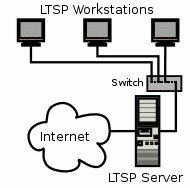
Linux Terminal Server Project (LTSP) allows the centralized deployment of virtual desktops on a local area network. Virtual desktop devices (thin clients) are connected to a switch on the LAN which connects to a server or cluster of servers delivering a desktop environment and applications.
LTSP is integrated into Ubuntu 11.04 and earlier versions. The logical choice for deployment is Ubuntu 10.04, a LTS version. LTS stands for long term support, which provides three years of security and maintenance updates.
Low Cost VDI with Ubuntu Linux
With LTSP organizations can recycle old Desktop PCs (800 MHz, 256MB RAM) or deploy new low footprint and energy efficient thin clients. A properly sized quad-core server could power up to 50 thin clients, providing desktop environments at a relatively low cost. Cost savings are most notable in maintenance and security over the years. Desktop hardware refresh cycles are between 7 and 10 years, thanks to the lack of spinning hard drive in each desktop device. Backups take place only in the server room. Desktop device replacement is as simple as drop in and power on (unless you have security customizations).
LTSP Technical Overview
Thin client devices in a virtual desktop deployment with Ubuntu Linux boot over your local area network. The virtual desktop environment and applications are executed on the server in a read only format. Users are still able to customize their desktop’s as well as access personal and shared fire storage. Applications can be delivered from local or remote application servers and can be Windows or Linux based.
Read more: Bihlman.com

Sunday, June 19, 2011

Find PPA With Application Name Using Y PPA Manager

Personal Package Archives (PPA) allow users to easily download and install software in Ubuntu Linux. Unfortunately, it can be a bit difficult for novices to understand this process which involves accessing software sources for adding an APT line of the repository. Y PPA Manager is a tool which simplifies this process. It allows adding, deleting and purging PPAs easily. You can also search and install PPA from Launchpad repositories by entering the name of an application.

Install Y PPA manager by entering the following commands in the Terminal:

sudo add-apt-repository ppa:webupd8team/y-ppa-manager
sudo apt-get update
sudo apt-get install y-ppa-manager

The main interface is quite self explanatory. You can Add a new PPA from the Add button and delete added sources from the Remove button. To get a list of your packages from “List Packages”. The Advanced option allows backing up, restoring and purging PPAs.

Read more: Addictive tips

Thursday, June 16, 2011

A little collection of cool unix terminal/console/curses tools

Just a list of 20 (now 28) tools for the command line. Some are little-known, some are just too useful to miss, some are pure obscure -- I hope you find something useful that you weren't aware of yet! Use your operating system's package manager to install most of them. (Thanks for the tips, everybody!)

dstat & sar
iostat, vmstat, ifstat and much more in one.

dstat_screenshot.png
htop & iotop
Process, memory and io monitoring.
htop_screenshot.png

Monday, June 06, 2011

Linux Kernel Manual Pages

Having the ability to lookup how a kernel function works is very handy when writing your own device driver or any kernel module. Unfortunately you cannot just apt-get install kernel-manpages. Well wouldn’t that be nice! To get your kernel manual pages for a specific kernel you can download the kernel source and execute a few choice commands. Here is a short tutorial under Debian (and would probably work for most Linux distributions).
  • Download your kernel version, in this case I grabbed version 2.6.32.3
  • Untar the the document by: tar -xvf linux-2.6.32.3.tar.bz2
  • Now move into the new linux-2.6.32.3 directory and type make mandocs. The system might prompt you to download missing packages to build the manuals, proceed to do so.
  • After the documents have been made type make installmandocs, this will install the manual pages into /usr/local/man/man9/. This way you can now type man copy_to_user to see how to use the specified kernel function!
Read more: Prescott Linux

Tuesday, May 24, 2011

How to Delete and Recover Files in Linux

Linux is a reasonably famous Operating System especially among programmers. The default file system in Linux is known to be intolerant when it comes to user mistakes, but using the method described in this post, you will be able to recover any data that you lost or accidentally deleted.

Deleting Files In Linux

Deleting a file in Linux is quite simple. You just have to right-click the file icon (which you want to delete) & then click the “Delete” option in the context menu. If you are working from the command console or terminal, the delete command is “rm” for remove. The “rm” command accepts a number of parameters which can be both unsafe and extraordinarily useful. The most famous parameter pair is “rm -rf”. This command deletes everything that’s present inside the specified folder, recursively (r). Moreover, this command does not ask you to confirm the deletion of each file. This means that you can accidentally delete the entire File system. This could be dangerous in some cases.

There is no recycle bin in Linux. So if you delete a file, It will no longer be available on your hard disk. Other operating systems however, usually have a recycle bin, which is just a folder where all the deleted files are preserved where they can be recovered or permanently deleted from there.

Recovering Files in Linux

Linux is famous for being customizable, there is a little tweak that can be made that will add the recycle bin functionality. You can simply add an alias to their.bashrc file, in a user’s home directory, that overrides the rm command. The alias is as follows:

alias rm=’mv –target-directory=$HOME/.Trash’

Read more: Prescott Linux

Friday, May 20, 2011

Three locks for your SSH door

Introduction
If you require remote access to your computer and you enable Secure Shell (SSH) connections, you must accept that you will automatically attract hackers who will try to break your defenses and take command of your machine. Although there's no guarantee that your machine won't be "0wn3d" by a "h4x0r," a few simple solutions can help reinforce your SSH door and make life a bit more difficult for anybody trying to break in. This article considers three such techniques:

  • Changing SSH's standard port to an unusual value and reinforcing SSH configuration so that simple-minded attacks just bounce back.
  • Defining a restricted list of users who are allowed to log in.
  • Completely hiding the fact that you even allow SSH access and requiring a special "knock" sequence to be recognized as a possible user.
To apply these techniques, you need to access the root account. Also, you'll probably have to install some packages, and you'll need to configure your firewall and your router—if you have one—to open and close specific ports and forward them to your machine.

Reinforcing the door

The concept "security through obscurity" is well known—and well derided—because doing things in an obscure way, hoping that no one will get wise to your method, is just asking for problems. However, in some contexts, a bit of obscurity can help. Although simple measures cannot stop determined hackers, at least you can be better defended against "script kiddies", whose scripts usually aren't that thorough.

Everybody knows that the standard port for SSH connections is 22. So, the first step you should take to make your machine more secure is simply to change the port to another unused and nonstandard port number—say, 22960. Numbers above 1024 are usually safe, but check the references to avoid possible problems. This change simply means that you have to use this command line to connect to your computer:

ssh -p 22960 your.machine.url

To effect this bit of subterfuge, make a simple change in the /etc/ssh/sshd_config file. Edit it (you must work as root for this), look for the line that reads Port 22, and change the number to whatever you have chosen (If the line is commented out because it starts with a pound sign [#], remember to uncomment it). Save the file, and restart SSH with the command /etc/init.d/sshd restart. You should also open the chosen port in your firewall and close port 22.
But you can do even more. Fiddle with the configuration file so that it includes the lines shown in Listing 1. Note that some of these lines may already exist, but they could be commented out.

Listing 1. Some changes to your SSH configuration file enhance security at little cost

Port 22960 
LoginGraceTime 30 
MaxAuthTries 3 
Protocol 2 
PermitRootLogin no 

Read more: IBM

Thursday, May 19, 2011

20 Linux Server Performance Tips

050811_0504_20LinuxServ2.png
Below are some performance tips based on Linux features. These performance guidelines will enhance Linux’s efficiency.

1. Tuning of the Elevator Algorithm in Linux Kernel for Disk I/O

After choosing the file system, there are several kernel and mounting options that can affect it. One such kernel setting is the elevator algorithm. By tuning the elevator algorithm, the system can balance the need for low latency with the need to collect enough data to efficiently organize batches of read and write requests to the disk.

2. Disable Unnecessary Daemons for Saving Memory and CPU space

There are numerous daemons or background services which run on every server, and the ironic thing is that they’re usually not required. But services with no utility still utilize valuable RAM and CPU time. In addition, they may expose the server to be attacked remotely. So, you should discard them from the server. The best place to disable them is the startup scripts that start these services at boot time. Disabling these daemons free up memory and decreases startup time. In addition, you’ll cut the number of processes that the CPU has to handle. Another benefit of disabling them is increased security of the server because fewer daemons mean fewer exploitable processes.

3.Shutdown GUI

Broadly speaking, there is no requirement for a GUI on a Linux server. Hence, it is better to shut down GUI as all administration tasks can be achieved by the command line, redirecting the X display or through a Web browser interface.  In order to disable GUI, “init level” should be set to 3 (command line login), rather than 5 (graphical login). If a GUI is needed, it can always be started manually with startx.

4.Clean up modules or features

There are number of features enabled in server software packages (such as Apache) that are not really required. Look at the configuration files for Apache and decide if FrontPage support or some of the other extra modules re required. If the answer is “no,” disable unnecessary modules from the server. It helps in increasing the system memory, and it lends more resources to the software that truly needs it to run fast!

5. Disable control panels

In Linux, there are a number of the more popular control panels, such as Cpanel, Plesk, Webmin, and phpMyAdmin which everyone loves. However, disabling these software packages can make as much as 120 MB of RAM free! Hence it is advised to disable these control panels until they are actually needed. They can be turned on via a PHP script (albeit somewhat insecure), or via a command entered at a shell prompt. By doing this, you can decrease the amount of RAM being used by as much as 30-40%.

Read more: Monitis part1, part2

Ultimate Bashrc File 3.4

Description:

For those who love using the terminal, here is a '.bashrc' file I created, mainly for those who've had issues with their own. Hopefully it'll benefit those of whom love aliases, functions, and such. Probably more than you need, so modify all you want. I've organized it best I can to make it easier for using and modification. This is also for those many who've had a difficult time finding a good source for their own on the net, like it was for me.

Oh, and any modifications that others wish to share are always welcome.


Instructions:
Just extract the tar file and put in your home directory. You may have to overwrite the current one, so be sure to backup whatever beforehand. FYI, the default text in the '.bashrc' is included in this version so if you haven't modified it at all, you should have nothing to worry about.
To refresh it, just type in the terminal:

source ~/.bashrc

...or just close your terminal window and open it again.

Read more: Gnome-look

Wednesday, May 18, 2011

Ubuntu Linux Satanic Edition (666.9) review

Getting ready to review a Linux distribution is usually pretty straightforward. After some background research into the distribution's history, you download the latest ISO and beseech the head of IT to lend you a netbook or scrounge up some moth-infested, aging desktop PC.

In the case of Ubuntu Linux Satanic Edition ("Linux for the Damned"), however, I had wondered whether I would require some kind of spiritual preparation: Perhaps a confession of my sins to the nearest religious authority. Deadline pressure meant that there was no time for me to unburden myself of my frequent and extensive contraventions of the moral codes of many major religions (and quite a few minor ones). My atheist soul would have to face the distribution unshriven.

21

Read more: TechWorld

Top 30 UNIX command Interview Questions Answers

UNIX or Linux operating system has become default Server operating system and for whichever programming job you give interview you find some UNIX command interview questions there. These UNIX command interview questions are mostly asked during Java development and Support role interviews on various investment banks mostly because most of electronic trading systems or stock trading system works on Unix servers. As we know that high volume low latency systems which wants to take advantage of little bit of volatility in market for Equity , Futures and options or Foreign exchange trading need a stable server side operating system and Redhat Linux is doing great job there. with the advent of Algorithmic trading this speed factor becomes more important so getting someone who has good knowledge of operating system and commands on which these trading system runs is definitely required. but these UNIX command interview questions are equally applicable for any job interview which requires some work on Unix Operating System. With the growing use of Linux in form of RedHat, Solaris and IBM AIX its must to keep you familiar with essential Linux commands available on various platforms. 

Beginners UNIX Interview Questions Answers
1. Write command to list all the links from a directory?
In this UNIX command interview questions interviewer is generally checking whether user knows basic use of "ls" "grep" and regular expression etc
You can write command like:
ls -lrt | grep "^l"

2. Create a read-only file in your home directory?
This is a simple UNIX command interview questions where you need to create a file and change its parameter to read-only by using chmod command you can also change your umask to create read only file.
touch file
chmod 400 file

3. How will you find which operating system your system is running on in UNIX?
By using command "uname -a" in UNIX

4. How will you run a process in background? How will you bring that into foreground and how will you kill that process?
For running a process in background use "&" in command line. For bringing it back in foreground use command "fg jobid" and for getting job id you use command "jobs", for killing that process find PID and use kill -9 PID command. This is indeed a good Unix Command interview questions because many of programmer not familiar with background process in UNIX.

5. How do you know if a remote host is alive or not?
You can check these by using either ping or telnet command in UNIX. This question is most asked in various Unix command Interview because its most basic networking test anybody wants to do it.

Linux on web

Linux on web implemented in JavaScript

Read more: Linux on web

Wednesday, May 11, 2011

Setting up central Mercurial server in Ubuntu

It’s been a while since we’ve been thinking about moving to Mercurial from Subversion at our company. We were convinced about the benefits of DVCS and chose Mercurial over Git. However, due to pressure at work and some procrastination, the move was delayed a couple times. Finally, today we had the move and the team is already up to speed with it.

Although it’s quite simple to install it in a central server, the different articles on the web had me confused with too many options or with a different distro than Ubuntu. So, here is a dead simple list of things to do for installing Mercurial centrally for your dev team.

1. Log onto your server using SSH

2. Install mercurial from repository:
sudo apt-get update
sudo apt-get install mercurial

3. We need to have a directory to store our Mercurial configuration and repository files, so let’s create one and change it’s owner to the apache user so that apache can access them:

cd /var/
sudo mkdir hg
sudo mkdir hg/repos
sudo chown -R www-data:www-data hg/repos

Read more: Emran Hasan's Blog

Thursday, May 05, 2011

Three helpful SSH tips for developers

If you're a developer that deploys stuff to unix systems, then one of the most common tools you interact with is SSH. It never ceases to amaze me, in spite of this, how little developers really know about SSH.

SSH config file
The first thing any developer needs to know is that SSH has a config file that allows you to configure defaults for SSH on a host by host basis. It also allows aliases, and bash completion can use this config file to make sshing into a system much easier. This file lives under the .ssh folder in your home directory, ~/.ssh/config. Here's a sample of things that I have in my config file.

Host home
    Port 2222
    User james
Host sshjump
    Hostname sshjump.atlassian.com
    User jamesroper
    ForwardAgent yes

So I can SSH home by running ssh home and that will automatically use james as the username, jamesroper.homelinux.org as the host name, and 2222 as the port number. For details on all the configuration just read the man page, man ssh_config. You'll see that you can configure everything including port forwarding and much more.

Jump boxes

There are a number of times when I need to SSH into a jump box to SSH to another system. The annoying thing about this is to get to a system, I need to run two commands, and scp is even more annoying because I have to copy first to the jump box, then to the remote system.
Enter ProxyCommand. The proxy command config option allows you to specify a command that SSH will run first in order to establish the connection to the remote system, and then it will pipe its communication through that command. Combined with nc on the jump box end to create a TCP connection to the your destination host, this can be used to tunnel an SSH connection through another SSH connection. The configuration in the SSH config file looks like this:

    ProxyCommand nohup ssh sshjump nc -w1 %h %p

The other thing I've made use of here is wildcards, and the ability for SSH to substitute the host name and port number for the particular host into option values. Now I can run ssh jira.atlassian.com, and the SSH connection will be piped through an ssh connection to sshjump, which is an alias defined above as sshjump.atlassian.com. I can also scp directly.

Read more: Atlassian blog

Thursday, April 28, 2011

Ubuntu Linux 11.04, "Natty Narwhal," Now Available

Ubuntu Linux, easily one of the most popular Linux distributions available today, is out with what may be its most significant set of changes to date. 11.04 "Natty Narwhal" has brought with it not just major version jumps for nearly every core app and service, but also a completely revamped Unity interface.
Earlier this month, we took an extensive tour through the beta release of Ubuntu's latest, and things have mostly improved since then. The beta's may have been rough around the edges, but 11.04 is now stable and it feels the part.
Love it or hate it, Unity is clearly here to stay. It's been through a major update since 10.10. The interface still does sit atop the GNOME Desktop Environment, though—so things aren't so different once you get past the layout and some basic control maneuvers. It's worth noting, though, that users can select "Ubuntu Classic" from the login screen to switch to a possibly more familiar, more GNOME-like desktop.

Read more: Lifehacker